Compress video for PowerPoint, Keynote, or Google Slides
Compress your video so it embeds cleanly in a deck without bloating the.pptx - 25 MB is plenty for 1080p, runs in your browser; the encoder never uploads.
- Free to use
- In your browser
- No account
- No watermark
Drop a video here
…or click to choose a file.
Why your video is too big
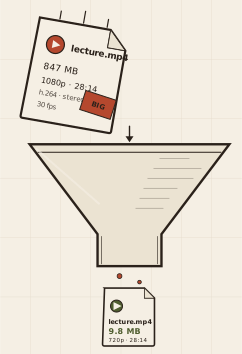
PowerPoint, Keynote, and Google Slides each embed the video inside the deck file when you insert it - the deck’s size grows by roughly the video’s size. A 200 MB phone clip embedded in a deck makes the whole file painful to email, upload, or open over a slow connection.
Projector resolution doesn’t go above 1080p, so a video targeted at 25 MB at 1080p holds up fine on screen. Compressing first means the deck stays portable; uncompressed embeds make the deck a storage problem even if PowerPoint itself accepts the file.
How to compress video for powerpoint, keynote, or google slides in 4 steps
Drop your video onto the page
Click or drag the video file (typically a phone recording or screen capture) onto the drop zone. The encoder doesn't upload.
Pick a deck-friendly size
25 MB for a single video at 1080p. 10 MB if the deck has multiple videos and you want it under ~40 MB total. 100 MB only when you're sure the audience won't need to email or upload the deck.
Click Compress and download the MP4
Output is standard MP4 (H.264 + AAC). The encoder runs in your browser; a 1-minute 1080p source typically finishes in 20–40 seconds on a recent laptop.
Insert into your deck
PowerPoint: Insert → Video → This Device. Keynote: Insert → Choose. Google Slides: Insert → Video → Google Drive (after uploading the MP4 to Drive). Same MP4 works in all three.
Common questions
Will the video stay in the deck when I share it?
Yes - once you’ve added the compressed video via Insert → Video (or equivalent in Keynote / Slides), it’s embedded in the file. The deck size grows by roughly the video size, which is why smaller is usually better for sharing.
What size should I aim for?
25 MB is a good default for a single video in a deck. Drop to 10 MB if you have multiple videos and want the whole deck under ~40 MB. 100 MB is fine for one polished presentation, but anything bigger gets painful to email or upload.
Does Google Slides need a different format?
Google Slides accepts MP4 directly when uploaded to Drive and inserted via Insert → Video → Google Drive. Same MP4 file works.
Will animations or transitions inside the video survive?
Yes - we re-encode the video stream but don’t change its content. Anything that was in the video before compression is in it after, just at a smaller bitrate.
How private is this?
The encoder runs in your browser via ffmpeg-WebAssembly. Your video never reaches our servers. The one exception is the optional support-upload flow, which only runs when you use it. Full privacy story.
Related tools
encodevideos.com vs Cloud compressors
| encodevideos.com | Cloud compressors | |
|---|---|---|
| Where your video goes | Stays on your device; the encoder never uploads | Uploaded to a third-party server |
| Account required | No account, no email, no card | Account or email signup typical |
| Watermark | Never | Watermarked output on free tiers |
| File-size cap | Up to 4 GB, limited only by your device's RAM | Hard caps tied to plan tier |
| Privacy | The encoder runs in your browser; we don't see your file | Provider holds a copy at least temporarily |